Search allows users to search all properties in Cribs. Search a property by Postcode, Name, or Street Address, or search multiple properties or Listings with different attributes across major property platforms.
Intended Users
What To Expect
Here is a short video clip on Search and Advanced Search features.
About
Search is the most widely used function within Cribs. It allows users to find any property in Singapore using Postcode, Name or Street. Through advanced algorithms and AI, users can also conduct deep searches through Advanced Search across key performance attributes such as Median Price, Median Rent, PSF, Yield, Areas, MRT or LRT Stations to find the best investment deals in the market. In addition, users can also search for multiple Listings across major property platforms based on Areas, MRT or LRT Stations, size of property, number of bedrooms or bathrooms and more.
Elements
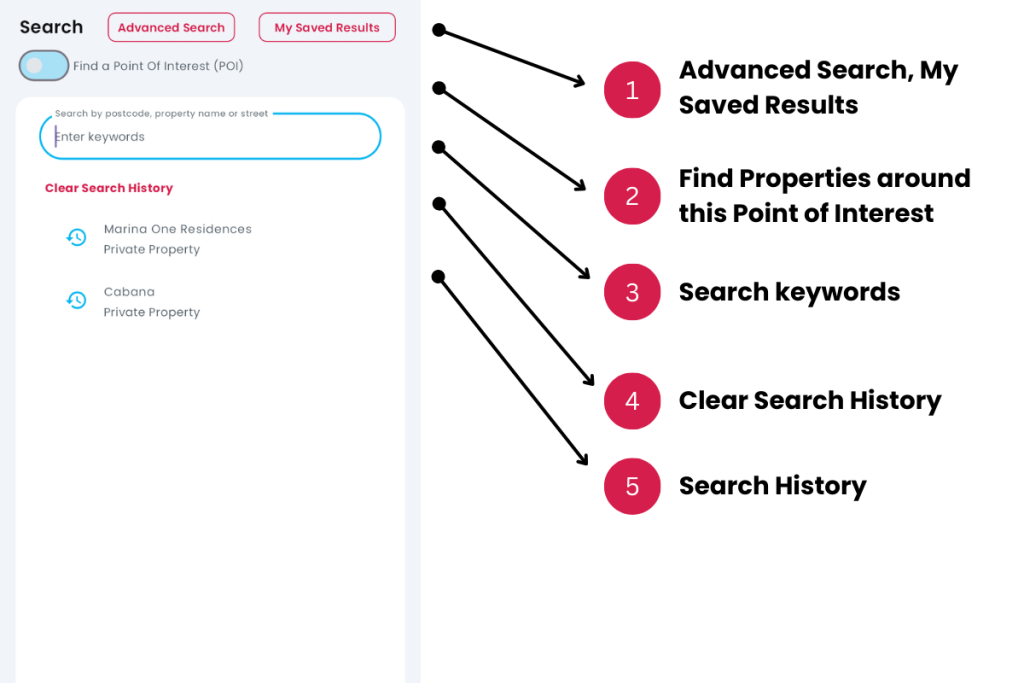
1. Advanced Search, My Saved Results
PRO ULTRA
- Description: Users can switch between Basic Search (for a single property) or Advanced Search (for multiple properties). My Saved Results will show Saved Search Results of the user.
- Tip: Use Postcode to find any property in Singapore.
2. Find Properties around this Point of Interest
LITE
- Description: Users can find Private Properties or HDB flats around any point of interest in Singapore, for example, a primary school or an MRT station, or a shopping mall.
- Tip: Cribs uses SLA’s OneMap APIs to find points of interest. Properties around primary schools are commonly searched as residences within 1km of the property are given priority in primary school registration. Choose a primary school of your choice and view the properties around it for your next investment.
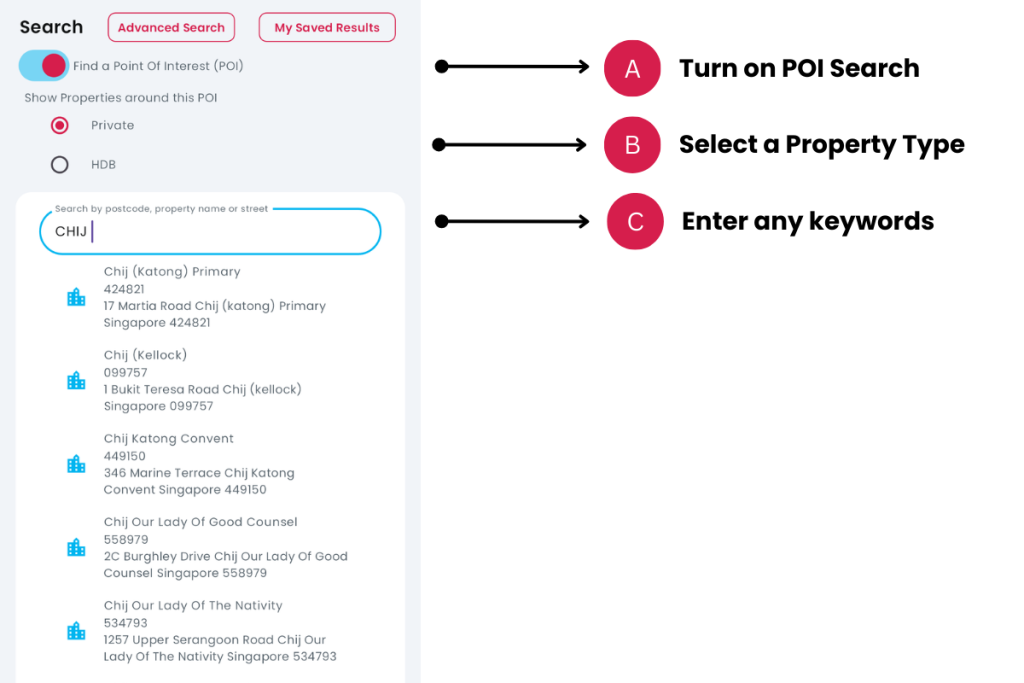

A. Turn on POI Search by tapping on the option button.
B. Select a Property Type such as Private Properties or HDB.
C. Enter any keywords to find a POI. Use Postcode, Name or Street Address. Tap on a POI to find properties around this POI.
3. Search Keywords
- Description: If POI switch is off (disabled), you can find any property by entering a keyword such as Postcode, Name or Street. Tap on any of the result and the Property Page of the property selected will be shown.
- Tip: Use Postcode to find any property in Singapore.
4. Clear Search History
LITE
- Description: Search history of previous searches are stored locally on device only. Tap on Clear Search History to remove all the previously stored entries.
- Tip: Clear your search history often.
5. Search History
LITE
- Description: Displays search history including POI searches for faster search retrieval.
- Tip: If you forget what you have been searching, you can use this feature or Saved Search Results (for Advanced Searches).
6. Advanced Search
PRO ULTRA
- Description: Advanced Search is a feature that uses AI and key performance attributes to find properties or Listings.
- Tip: You can use this to find a variety of properties that suit your investment needs or property choices.
Search Properties without Listings
PRO
or Search Properties with Listings
ULTRA
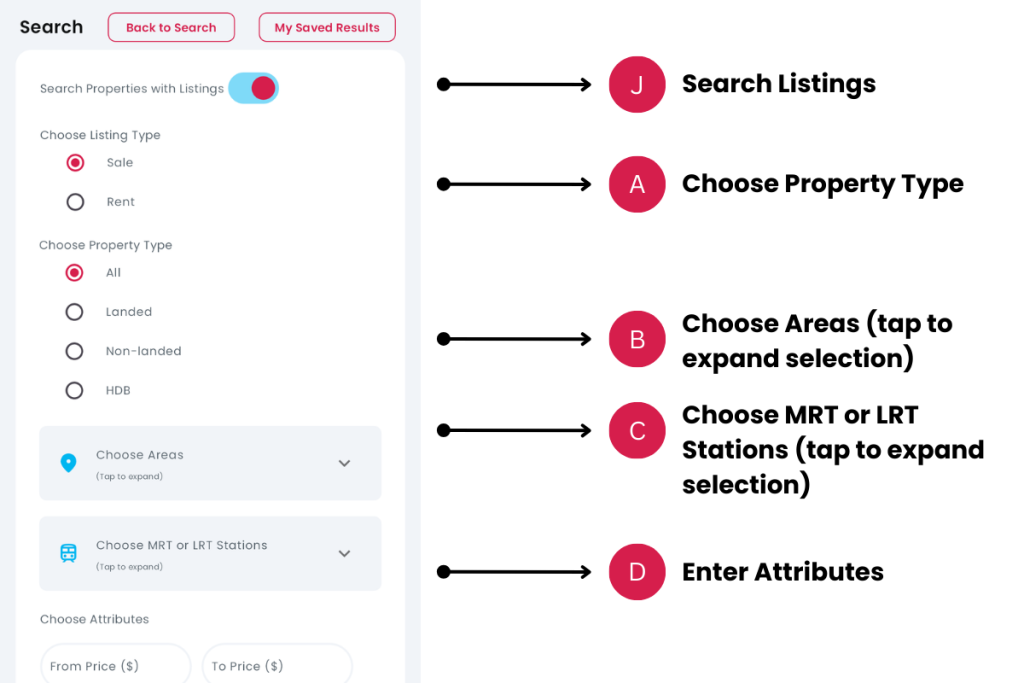
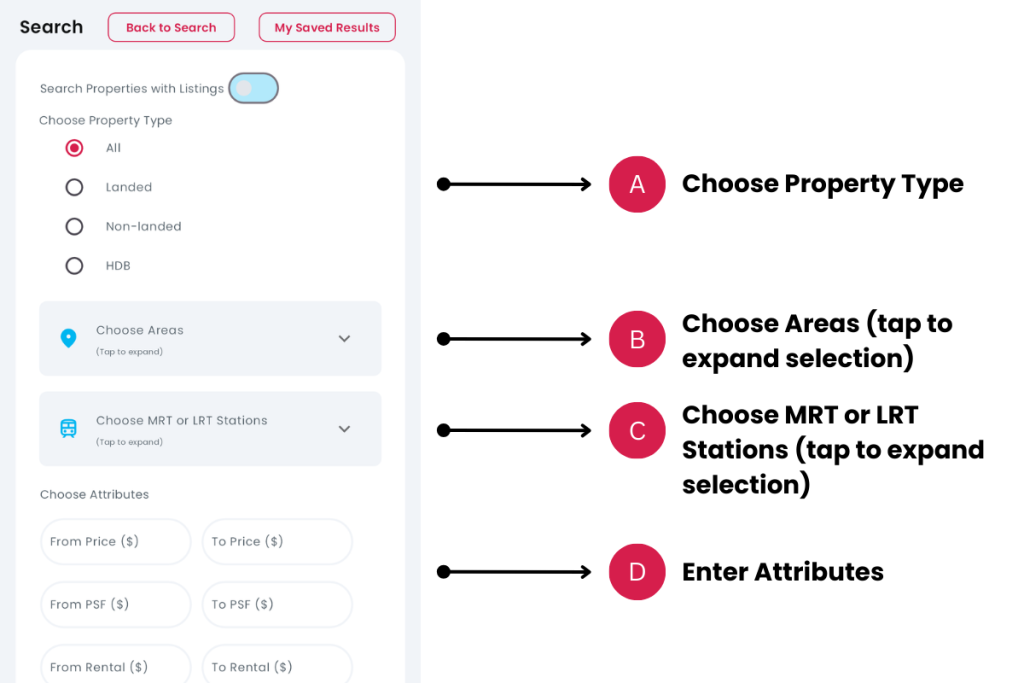
A. Choose Property Type. Options are All, Landed, Non-landed or HDB.
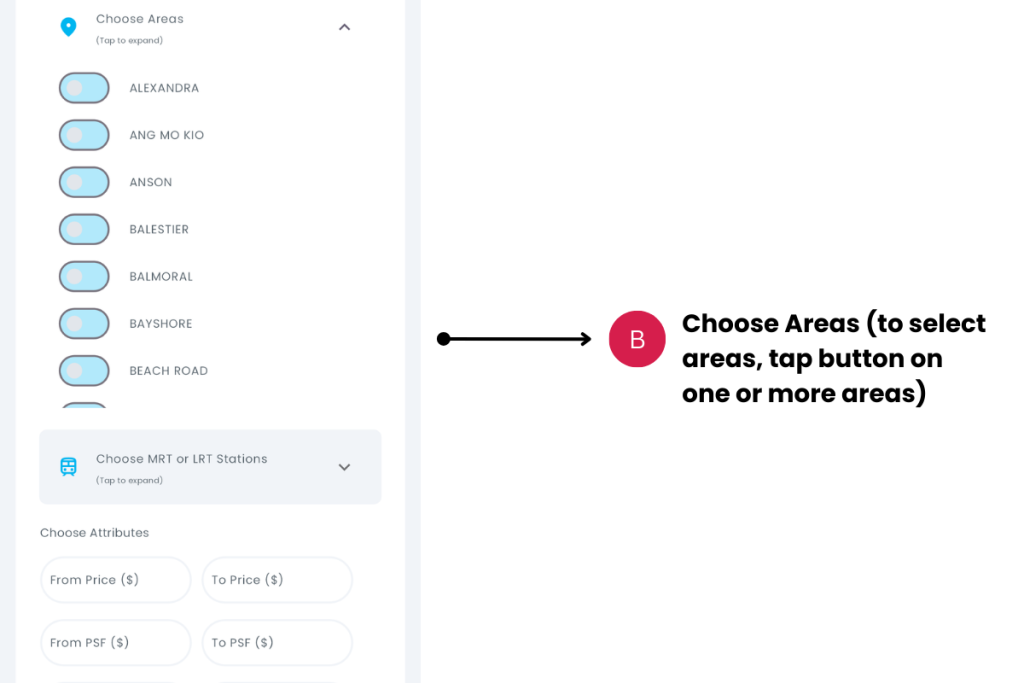
B. Choose Areas as a location choice. Examples would be Serangoon, Hougang, etc. Tap to expand choices.
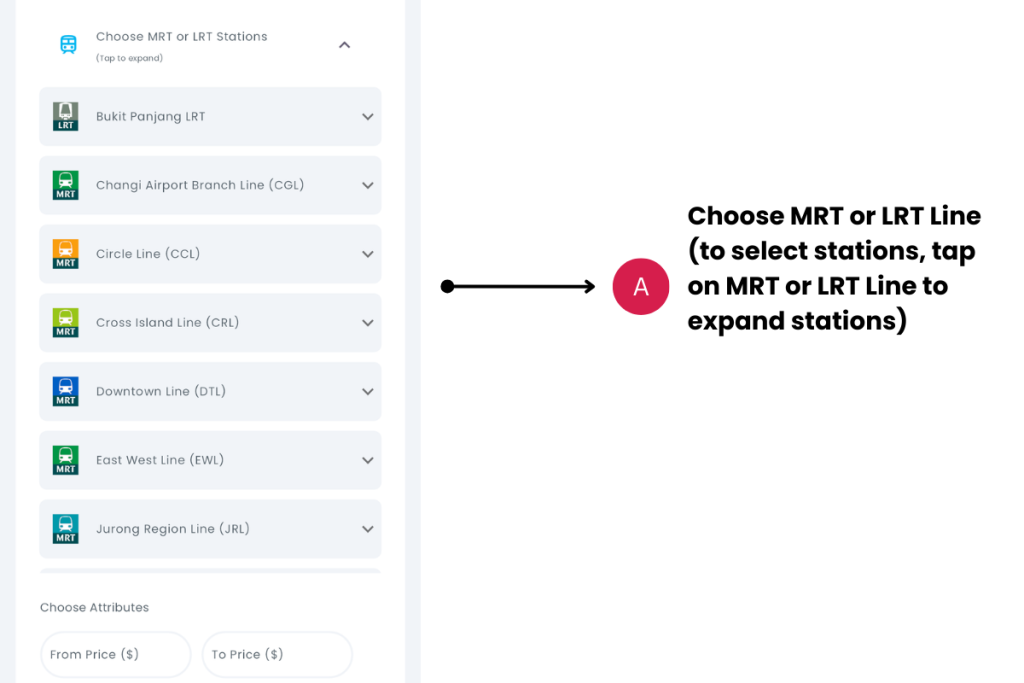
C. Choose MRT or LRT Stations as a location choice for properties within 1km of the station. Tap to expand choices. Choose MRT or LRT Line, select Station.

D. Enter More Attributes of Advanced Search.

E. Search by tapping on the Search button.
F. Reset the Search to start over again.
G. Search Results will be shown, based on your search criteria. Tap on any row to view the Property Details page.
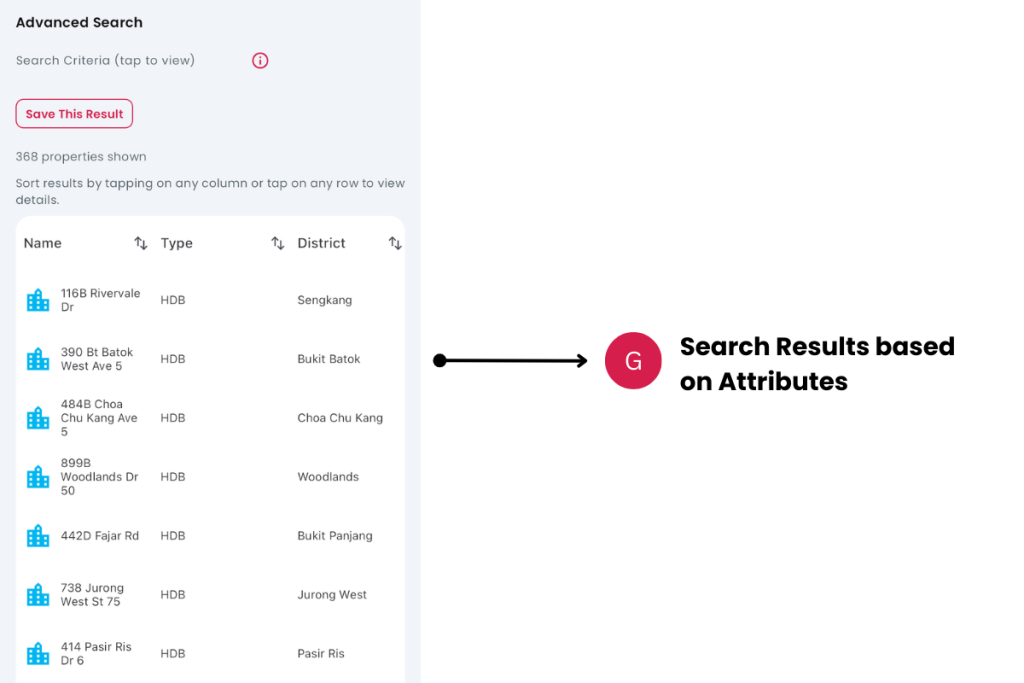
H. Search Criteria can be viewed by tapping on the Information (i) icon.

I. Save This Result by tapping on the ‘Save This Result’ button.
J. Search Properties With Listings will show attributes that can be searched for Listings.
ULTRA
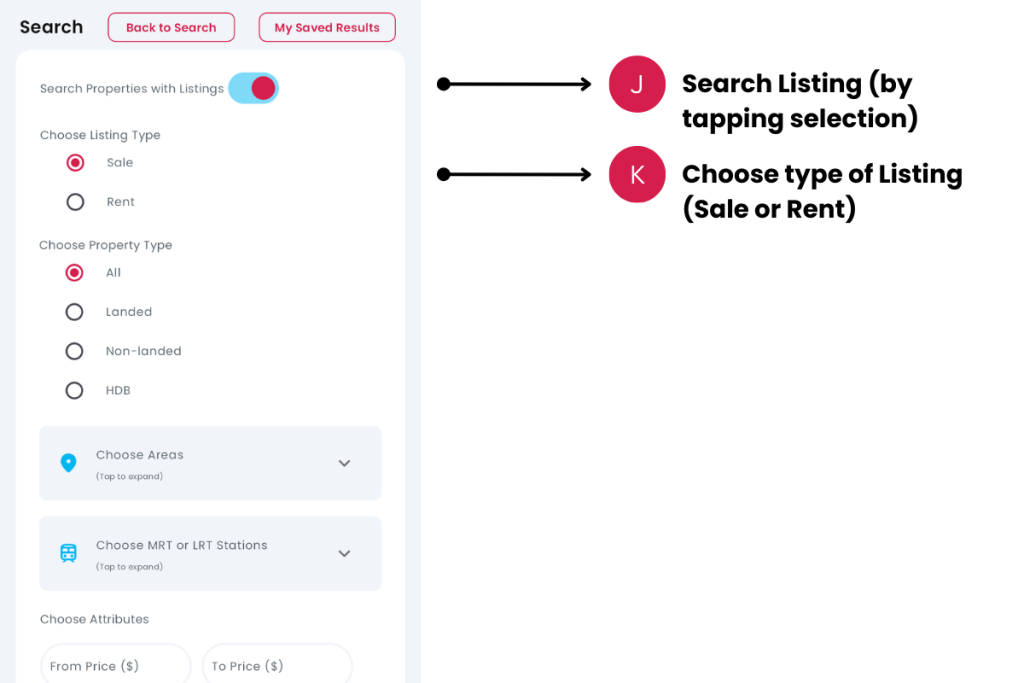
K. Choose type of Listing such as Sale or Rent. Other attributes such as number of bedrooms, number of bathrooms will appear, in addition to Areas and MRT and LRT stations. As per the above D, tap on Search to find property listings that meet your criteria, or Reset to start again.
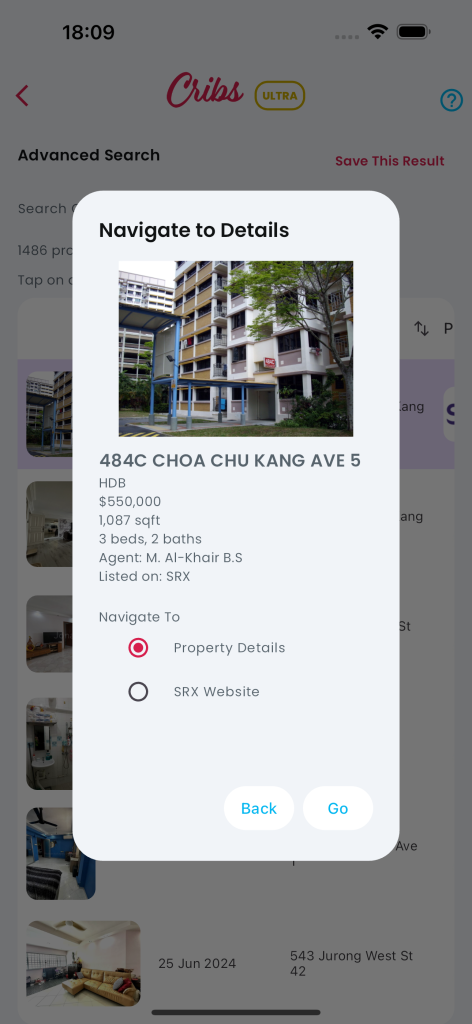
L. Search Listings Result can be viewed by tapping the Search Listings option and entering various Search criteria, including additional attributes such as the type of Listing (Sale or Rent), number of bedrooms, number of bathrooms, etc. Search Listings will search across various property platforms to find listings that meet your criteria. Tap on each row to view the external listings on the property platform.
ULTRA

You can either view the Property Details or go to the platform’s website to view the listings details.
Exceptions and Error Handling
No Search Results Displayed
Description: If you don’t any search results.
Solution: Try tweaking the search criteria. For example, if you choose an attribute such as Yield between the values of 30% to 40% will not yield any search results.
Contact and Support
Need further assistance? Contact our support team via the About section on our website or email support@cribs.com.sg