Home page allows users to access all the commonly used functions and features of Cribs. There are numerous widgets that show the overall market information, user profile and affordability information.
Intended Users
About
The Home Page is the main launch page for Cribs. It shows all the key widgets for a user and several snippets of information about the overall property market. Start your journey with Cribs from the Home page.


Elements
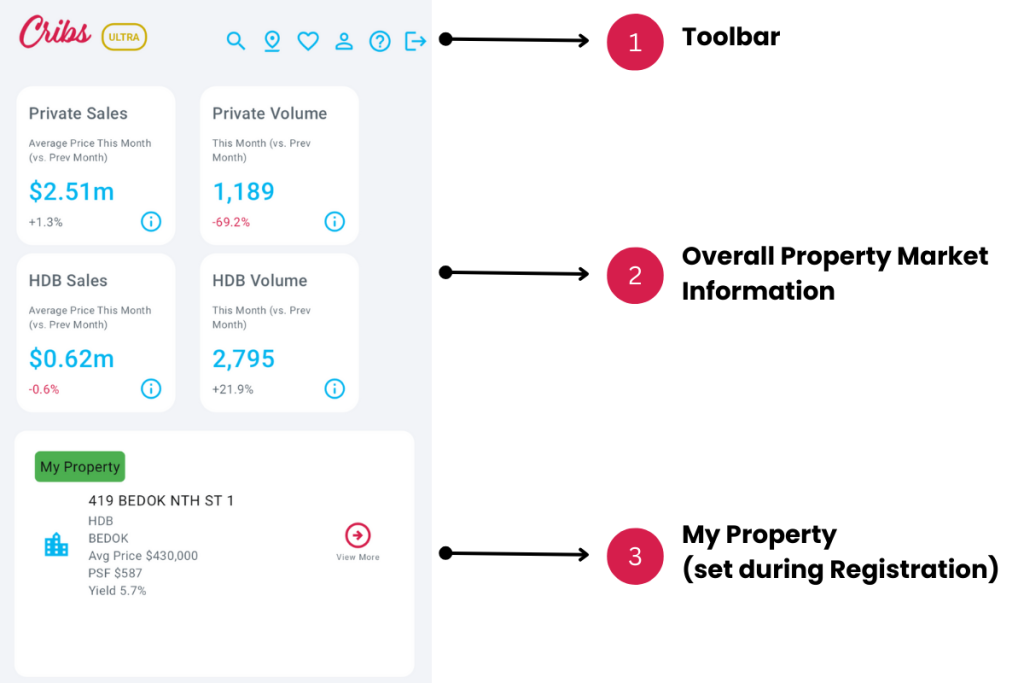
1. Toolbar
- Description: There are several elements in the Toolbar, starting with Search, Properties Around Me, Favourites, Profile and Logout.
- Tip: The most used function is Search. Click on the Search (Hourglass) icon to access Basic or Advanced Search.
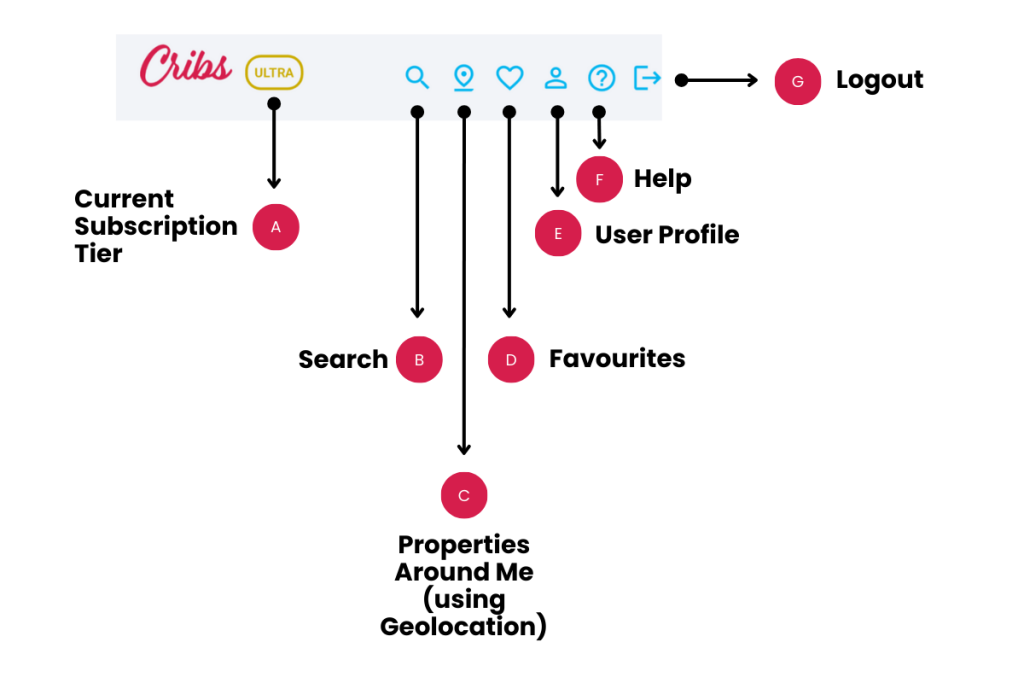
A. Current Subscription Tier displays the user’s Current Subscription Tiers. Values shown will be LITE, PRO or ULTRA, reflecting the user’s choices of the type of plan. Both PRO and ULTRA are paid plans, while LITE is a free plan.
B. Search will display the Search page where users can search for any property based on Postcode, Project Name, Street Name and so on. Users can also choose to search for properties around a Point of Interest (POI) such as a school, or MRT station. Advanced Search will allow users to search for properties based on property attributes such as areas, around MRT stations, property types, price, size, yield, etc. Advanced Search also allows users to search for property Listings across major property platforms using attributes such as areas, around MRT stations, price, number of bedrooms, etc.
C. Properties Around Me uses Geolocation from your device to show properties around your current location. It is extremely useful when searching for properties in a location that you are currently in. Permissions for turning on Location information are to be granted when using this function – Only Once, or Only When Using. You will only need to do it once, or you can change the permissions later by going to Settings on your device.
D. Favourites displays all properties that you have liked using the Heart icon on the Project Page.
E. User Profile displays the current user’s profile. The options available under User Profile are Change Subscription Plan, Change Password, Revise Affordability Assessment (for Buyer/Seller, Renter or Agent) and so on.
F. Help displays the User Guide page of the current page and describes the various functions in the page.
G. Logout will sign the user out of Cribs and go back to the Login Page. Some attributes such as Search History will be deleted when the user logs out.
2. Overall Property Market Information
- Description: Displays the current Property Market Information for Private Properties and HDB Flats in terms of average sale prices and volume of transactions, updated daily.
- Tip: Click on any Information block to go to the Property Market Info page.
3. My Property
- Description: Displays the user’s current property, set during Registration. This will only display for Buyer/Seller or Renter profiles. This can be changed anytime by clicking on ‘Revise My Analysis’ on User Profile. Tap on View More to go to the property’s Property Details page.
- Tip: Enter your current residential address to glance on its current KPIs include guide prices and much more.
4. User Profile
- Description: Displays the user’s profile, set during Registration. The user’s affordability information will be displayed. Tap on View Recommendations to view recommendations based on user’s preferences set during Affordability Analysis.
- Tip: Do not skip the Affordability Analysis during Registration. You can always change the information by clicking on ‘Revise My Analysis’ to show the correct information. This is a feature that is extremely useful when viewing properties. Each property details will display an Affordability tag such as ‘Within Affordability’, ‘Barely Affordable’ or ‘Beyond Affordability’. In addition, Home Loan estimations will be customised, based on the user’s affordability.
5. View Recommendations
- Description: Displays the recommendations of properties, set during Registration.
- Tip: Recommendations are based on preferences that are set during Registration or when the user changes the User Profile by clicking on ‘Revise my Analysis’. You can change this as many times as you like, as your continue your search for a property.
6. Change User Profile and Affordability Analysis
- Description: Displays the Registration process again, allowing users to change their profiles to Buyer/Seller, Renter or Agent.
- Tip: You can change this as many times as you like, as your continue your search for a property. For Agents, you can also change this to suit your client’s profile and recommend properties based on the affordability of your client.
7. Recent Views
- Description: Displays recent properties that you have viewed.
- Tip: If you forget properties that you have viewed, you can scroll through this list to look at those that you have looked at. You can also Favourite your property and find them later under Favourites.
8. Search any CEA Salesperson by Name, Registration No or Agency
- Description: Displays the Agent Search page where you can search for any agent by Name, Registration Number or Agency.
- Tip: If you would like to check the authenticity of an Agent or the track record of the Agent, whether the individual is better at sales or rentals and the overall listings that the Agent has placed, you can use this function.
9. Overall Private Property or HDB Market Information
- Description: This is the same function as clicking on (2).
- Tip: Same functionality of (2).
10. Overall Private Property Market Segment Information by CCR, OCR, or RCR
- Description: Displays the Private Property Market information by market segment or regions such as CCR, OCR and RCR. View more information by viewing the help page.
- Tip: Private properties are also split into market segments or regions such as CCR, OCR and RCR. You can view the overall market information of each market segment or region by click on any of the icons. More information of this can be found on the URA website.
11. Overall Private Property Market Information by District
- Description: Displays the Private Property Market information by Districts such as District 1 to 28. View more information by viewing the help page.
- Tip: Some Districts such as District 19 are very popular with landed home seekers or home owners.
12. Overall HDB Market Information by Town
- Description: Displays the HDB Market information by Town such as Ang Mo Kio, Tampines or Jurong East.
- Tip: Some Towns are more popular than others such as Sengkang or Tampines for home seekers or home owners.
13. Most Popular Sales or Rentals by Volume of Listings for Private Properties or HDB
- Description: Displays Private Properties or HDB properties that have the most number of listings for sale or rental properties across major property platforms.
- Tip: The Most Popular Sale Properties are commonly new launches, whereas the Popular Rental Properties are usually near highly rated schools.
Exceptions and Error Handling
My Property does not display
Description: If you don’t see the My Property widget, it’s because your profile is Agent, or you have not set it.
Solution: If you are an Agent, change the profile to Buyer/Seller or Renter by clicking on Change My Profile, or click on ‘Revise My Analysis’ to set your residential property. If you are a first-time buyer, you can set it to your current home address that you are renting or living in Singapore. Unfortunately, we can only profile Singapore addresses and not foreign locations.
Contact and Support
Need further assistance? Contact our support team via the About section on our website or email support@cribs.com.sg